
Read a Story, with or without narration
A Story opens in the reader, one page at a time. The voice can be on or off, and you can change that whenever you like.
Updated 1 min readWeb, iPhone, iPad and Android
Read the Story
Step 1: Open the Story
Open it from Journeys, or press Finish on the review screen right after you make it. It opens on its cover. Press Start story.
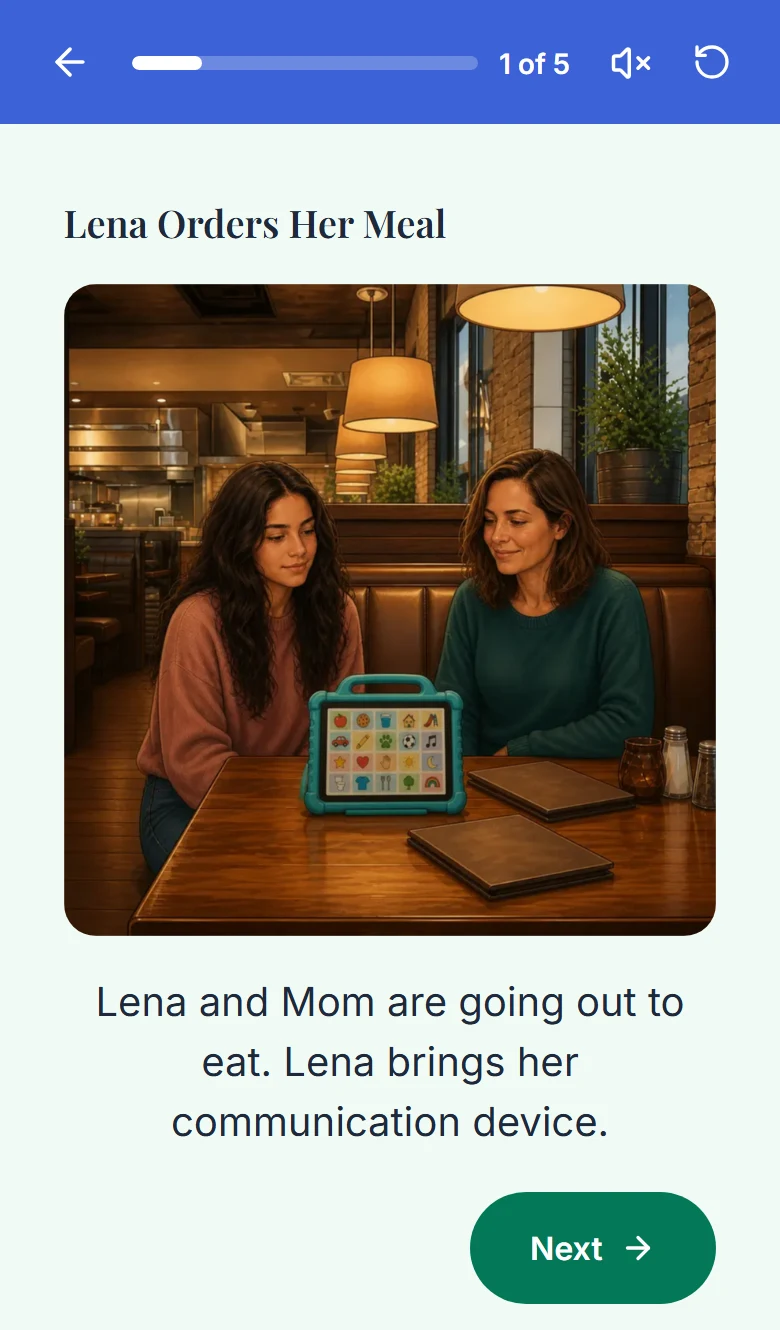
A Story in the reader. The voice toggle is at the top. Step 2: Turn the pages
The reader shows one page at a time and tracks how far the person has read. There is a small celebration at the end.
Step 3: Turn the voice on or off
Use the voice toggle in the reader. It works at any time, including on a Story you made without narration.
Who reads it
The voice that person is set to. Six default voices come with every plan, and you pick one per person in Personalization. Marisol reads until someone chooses differently. Reading in your own recorded voice is the GentleVoice plan.
Good to know
- If you opened the Story from the Daily Plan, finishing it checks that plan item off.
- On the web, leaving the reader after Finish takes you to Journeys.
If something goes wrong
If you did not choose narration when you created the Story, the audio is not made ahead of time. Each page gets its audio the first time you turn the voice on, so the first page can take a moment.
Did this answer your question?
Still stuck?
Contact support and a person will answer.