
Hand over the plan for the person to follow
Launch the plan and hand over the device. The person sees today's items in order, one Start button and nothing to edit.
Updated 2 min readWeb, iPhone, iPad and Android
Hand it over
Step 1: Launch the plan
On the web, select the launch button with the person's name on the Daily Plan card. In the app, open the Daily Plan tab.
Step 2: Set a PIN, or skip it
The PIN protects the exit back to the main dashboard, so the person stays inside their plan.
Step 3: Hand over the device
The person sees a Next up card with a Start button, a progress bar and the rest of today in order.
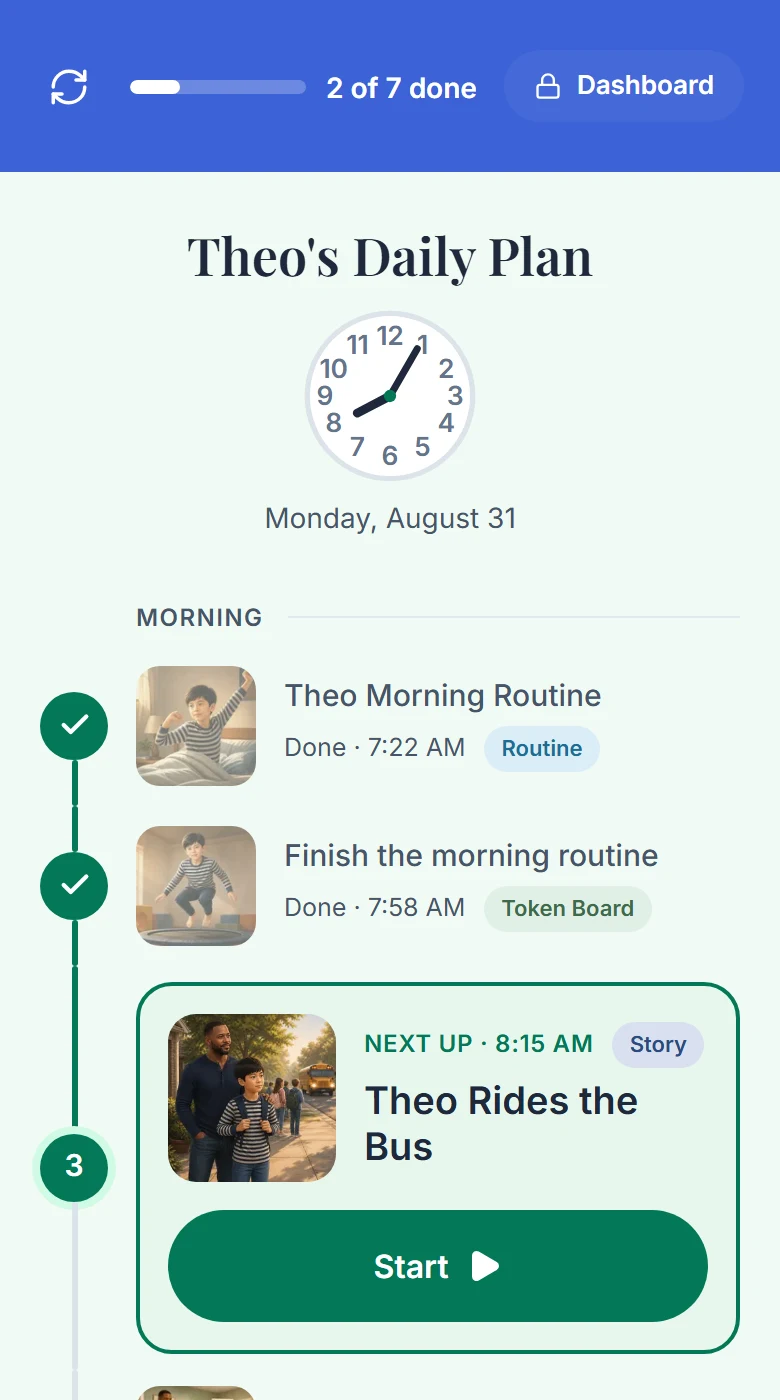
What the person sees. Start opens the next item. Step 4: The person presses Start
Start opens the player for that item. Finishing it checks the item off and returns to the plan.
Step 5: See what got done
Each completion shows on your Daily Plan card as a completion circle.
Reset the day
The reset control in the header asks first: "Reset today's progress?" Everything checked off today gets unchecked. The plan itself stays the same.
Good to know
- Items with a time are in clock order. Items without one show as Anytime, after the last timed item before them.
- The plan follows the device's local date and rolls over on its own shortly after midnight.
- On the web the PIN is stored in the browser. In the app it can be recovered with an emailed code.
If something goes wrong
The plan needs a time zone on the account. Until one is stored, the web page for the person's plan goes to a setup step. Set the time zone and the plan opens.
The web PIN is stored in the browser, so clearing the browser's storage clears it. A storage problem never traps the person inside the plan. They can still get out.
Did this answer your question?
Still stuck?
Contact support and a person will answer.