
Share a Story, Routine or Token Board with a link
Any Story, Routine or Token Board can go out as a link. Anyone with the link can open it in a browser without signing in. Sharing is free on every plan.
Updated 2 min readWeb, iPhone, iPad and Android
On this page
Share it
Step 1: Find the card in Journeys
Each card in Journeys and on the dashboard strip has a share button next to its three-dot menu. The menu has the same Share action.
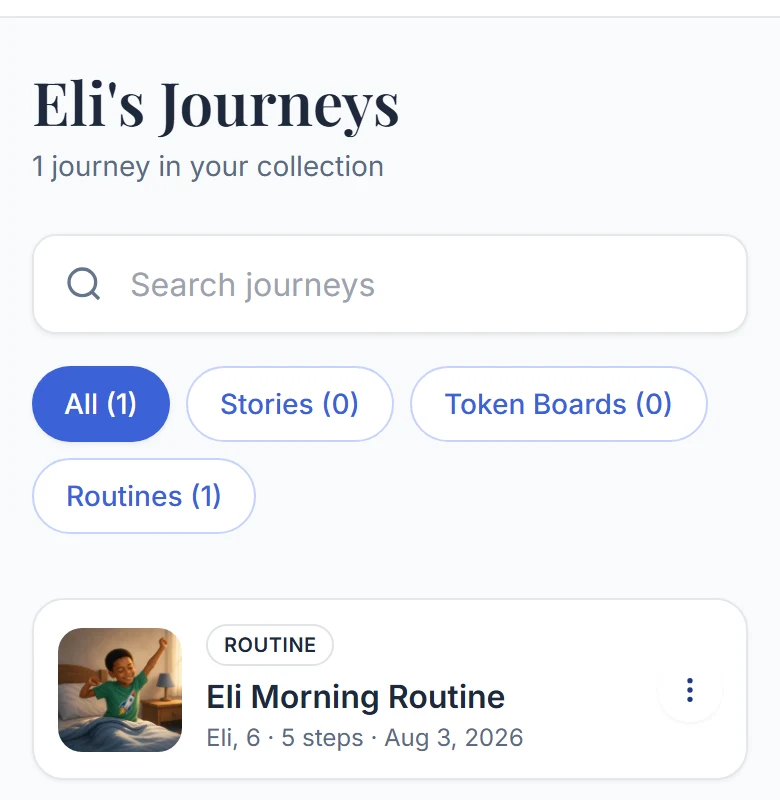
A card in Journeys. Share is in the three-dot menu too. Step 2: Turn sharing on
On the web, open the Share dialog and choose Copy link. That turns sharing on and copies the link. In the app, choose Share link and your phone's share sheet opens with the link.
Step 3: Check that it is live
The share button on the card fills in while the link works. The dialog says "Link is live" and shows the full address.
Step 4: Stop sharing when you want
Choose Stop sharing. The link stops working right away for everyone who had it. Turning sharing back on reopens the same link.
Right after you make a Story or Routine, the review screen has a "Send it to school or family" line that opens the same dialog.
Check what a Story says first. A shared Story page shows the person's name, age and the description used to build it. Do not share one that includes anything you want kept private.
What a link is
- Public and read-only. Anyone who has the address can open it, and no one has to sign in.
- No password. The only privacy is that the address cannot be guessed.
- No expiry. It works until you turn sharing off.
- Only Stories, Routines and Token Boards can be shared. Day plans, avatars and profiles cannot.
- You cannot see who opened a link or how many times.
Did this answer your question?
Still stuck?
Contact support and a person will answer.