
Make a Routine
A Routine is a visual schedule, illustrated with the person it is for. You make one in the chat: say what it is for, check the steps, then press Create routine.
Updated 2 min readWeb, iPhone, iPad and Android
Before you start
- The person needs a finished profile with an avatar. The avatar is what puts them in their pictures.
- On the free plan, a Routine uses one of your 5 free creations.
Make the Routine
Step 1: Open Create
Open the Create tab. It goes straight into the chat. The picture at the top right shows who the Routine is for.
Step 2: Ask for the routine
Tap Build a step by step routine, or type what you need, such as a morning routine. The assistant helps shape the steps and aims for about 4 to 8. Past 10 it suggests splitting them into separate Routines. Under 3 it checks with you.
Step 3: Check the draft
The assistant shows a card with the numbered steps, any durations and an Include narration switch. Reword a step, reorder them or remove one right on the card. You can also describe a change and get a new card. Nothing is drawn yet.
Step 4: Press Create routine
Leave Include narration on if you want the steps read aloud. Then press Create routine.
Step 5: Wait for the pictures
The steps are saved first. Then one picture per step is made, counted off as it goes. A Routine with some pictures still missing is usable.
Step 6: Run it, or fix it first
The Routine opens on the review screen. Right after creating, anyone can change the words, the order and the pictures there, free plan included. Press Finish to open it in the player.
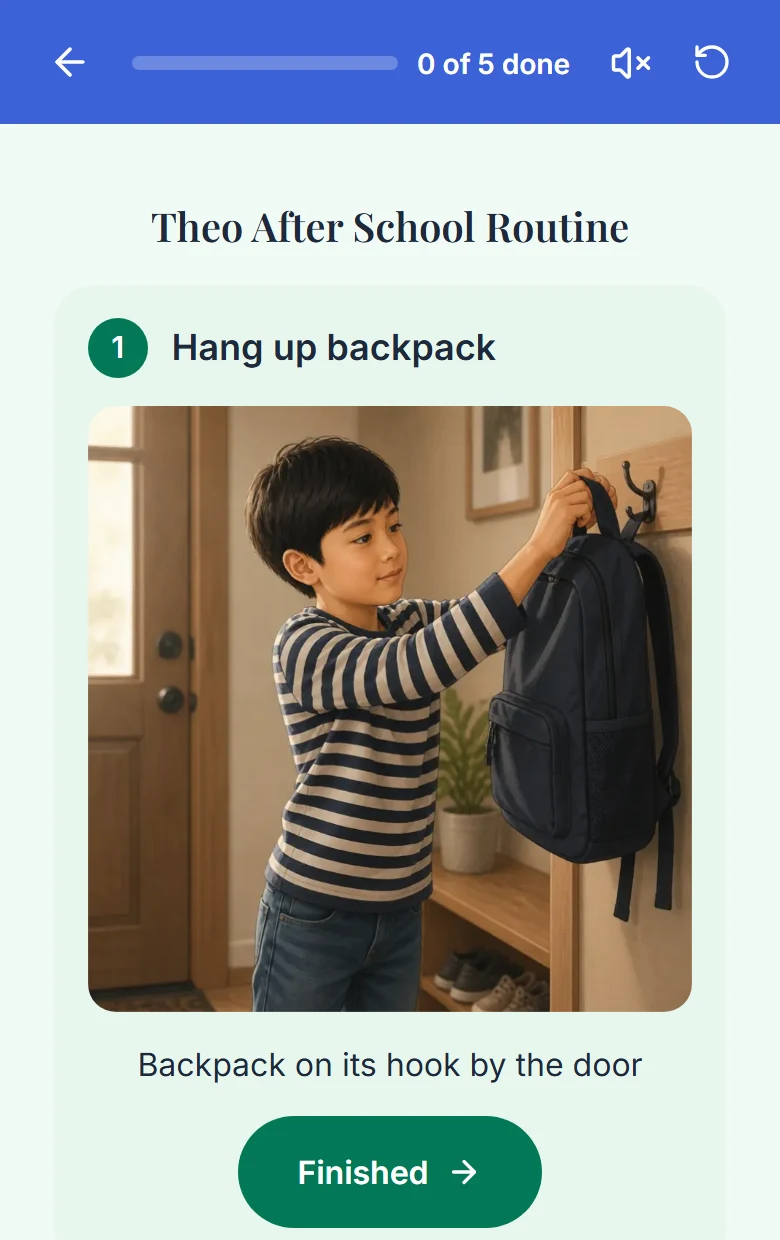
A finished Routine in the player.
Good to know
- Each step has a title, a line of guidance, a picture and an optional length in minutes.
- A Routine is the sequence, not a time on the clock. To make it happen at a set time, add it to the Daily Plan.
- Support people and pets you added can appear in the pictures.
- The steps are the same on the web and in the apps.
- Some web screens still say "schedule". Same thing.
If something goes wrong
If some pictures fail you still have a usable Routine: the steps are saved first. If every picture fails, it is not kept and your creation is given back.
A reply or a creation stopped, timed out or got cut offThe app retries it for free when you reopen the Routine. It spends no creation and no picture change.
A picture did not finish or could not be madeDid this answer your question?
Still stuck?
Contact support and a person will answer.