
Pick up a draft or go back to an earlier chat
Nothing is lost when you leave a chat. Every chat with a sent message is saved, and a draft you have not created yet waits for you.
Updated 2 min readWeb, iPhone, iPad and Android
Pick up a draft
A draft you have not created is on the dashboard under Pick up where you left off, and at the start of Journeys. Press Continue.
Go back to an earlier chat
Step 1: Open the sidebar
On a computer it sits beside the conversation. On a phone and in the app, tap the sidebar icon at the top left.
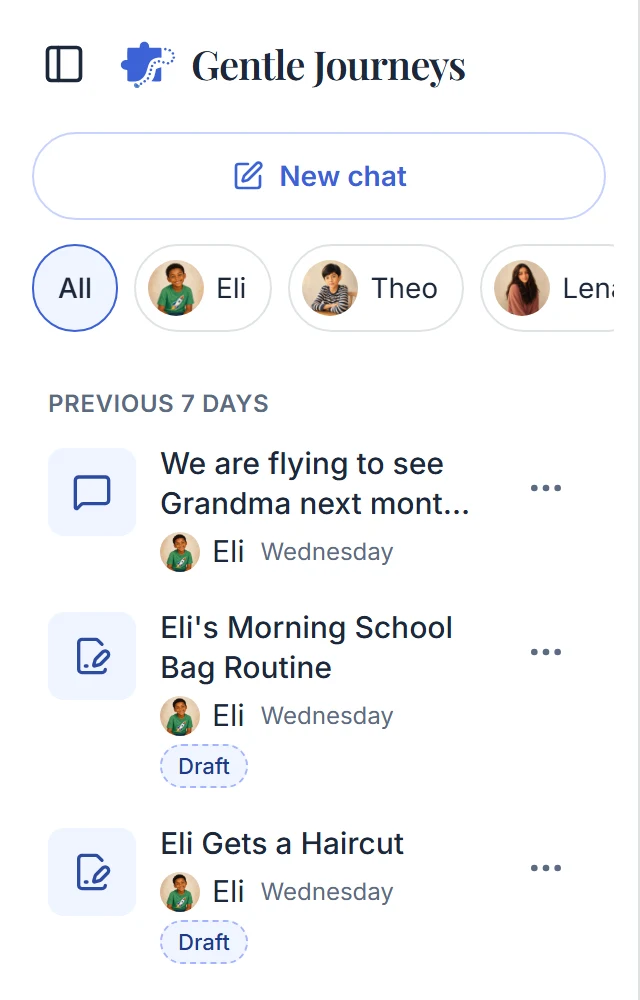
Earlier chats in the sidebar. Draft marks one that is still waiting. Step 2: Find the chat
It lists the chats of the person in view. With Everyone in view it lists every chat, with a filter for each person. Search appears once you have eight chats.
Step 3: Open it
The whole conversation comes back where you left it, with the draft as you left it.
Step 4: Rename or delete it
Use the row menu. A name you give sticks.
Deleting a chat cannot be undone. The conversation is removed for good. What it made stays in your Journeys, and Memory notes stay too.
Good to know
- The app asks before you leave only while something is still in progress: a reply arriving, pictures being made, a change being applied or a save that has not landed. Stay lets it finish.
- If a save does not go through, a line above the message box reads "Not saved yet. Trying again."
- A new chat starts a new conversation. It still has the person's profile, their Memory notes, their kept places and things, and everything you already made for them.
- Deleting a Journey never deletes its chat.
- An old chat can fill up. A full one offers a new chat.
Did this answer your question?
Still stuck?
Contact support and a person will answer.