
Switch who you are creating for
One person is active at a time, and the whole app follows them. Switch on the dashboard, in Personalization or in the chat.
Updated 2 min readWeb, iPhone, iPad and Android
Before you start
- Switching between main profiles needs more than one profile, on Premium or GentleVoice.
Switch the person
Step 1: Use the person switcher
On the web it is in the dashboard header, once you have at least one person. In the app it is on the Personalization screen.
Step 2: Or tap the person's picture at the top right of the chat
Picking someone else starts a new chat for them. The assistant may also offer a Switch reply.
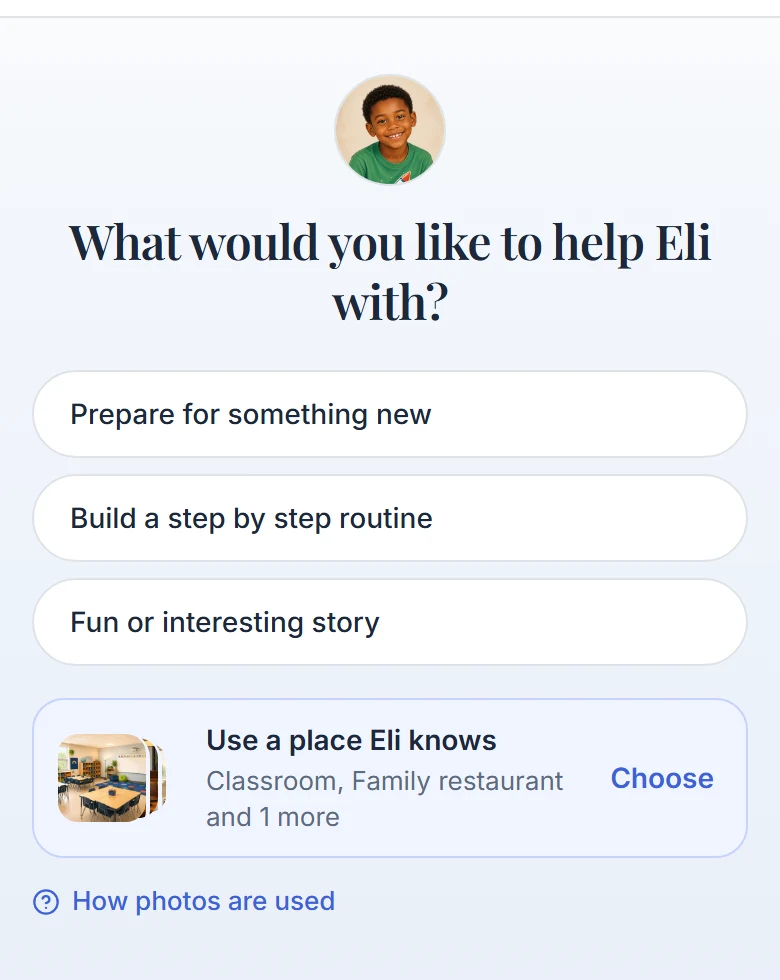
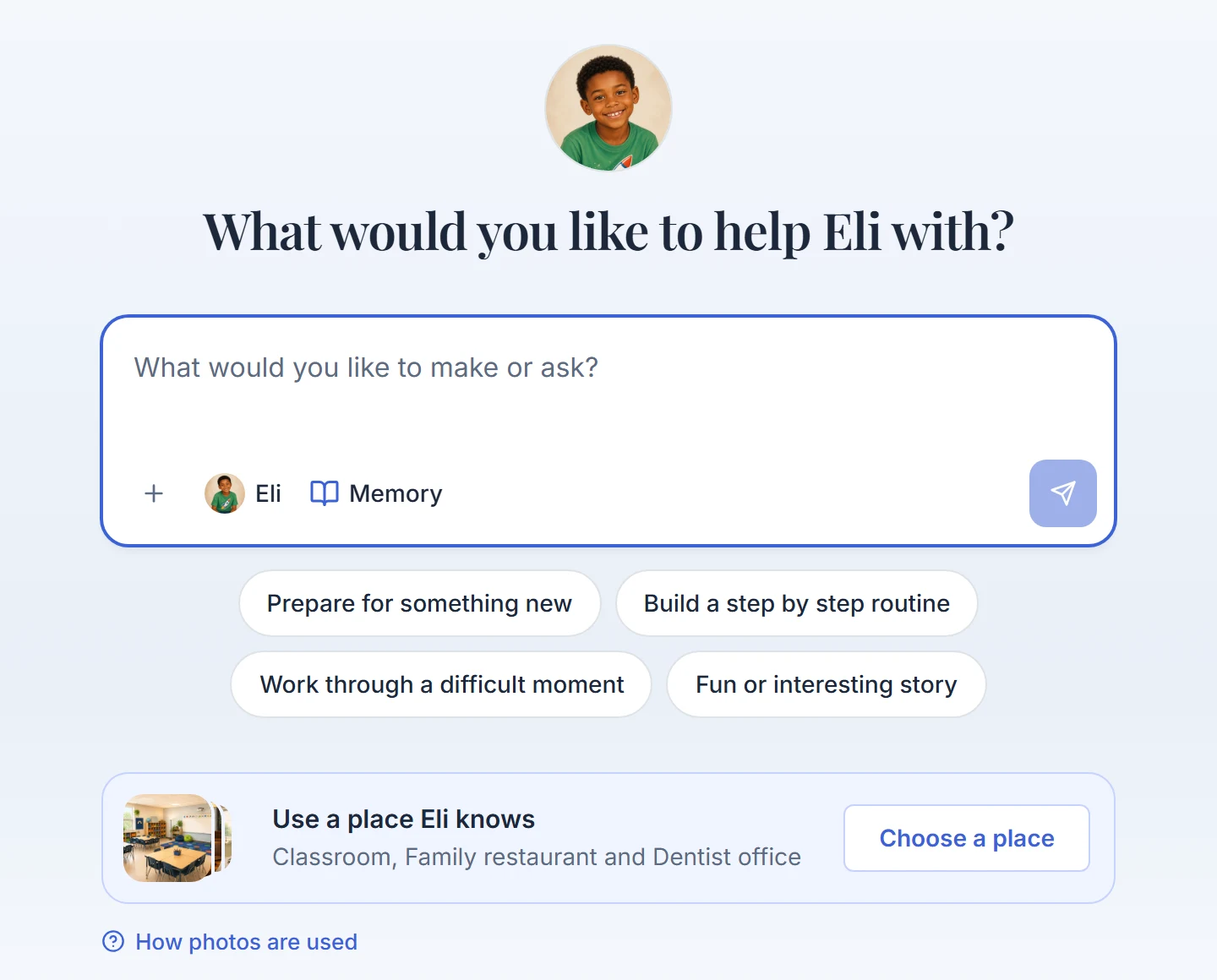
The chat names who it is for. Step 3: Confirm if asked
If the chat already has a message in it, the app asks before it starts a new chat for the other person. Stay keeps everything as it was. Start new chat opens the new chat.
What happens to the chat you left
It stays in History under that person. Opening it puts that person back in view. Everything you already created is in your Journeys.
Everyone mode
- Premium accounts with more than one profile also get Everyone.
- In Everyone, the People and World sections show what is shared across the account.
- Anyone or anything you add in Everyone is shared with every profile, including profiles you add later.
- With two or more profiles and no active person, creating asks who it is for first. Pick a person and continue.
If something goes wrong
Switching starts a new chat. The one you were in is waiting in History under that person.
Did this answer your question?
Still stuck?
Contact support and a person will answer.